Runs in your browser · nothing uploaded
Image Cropper
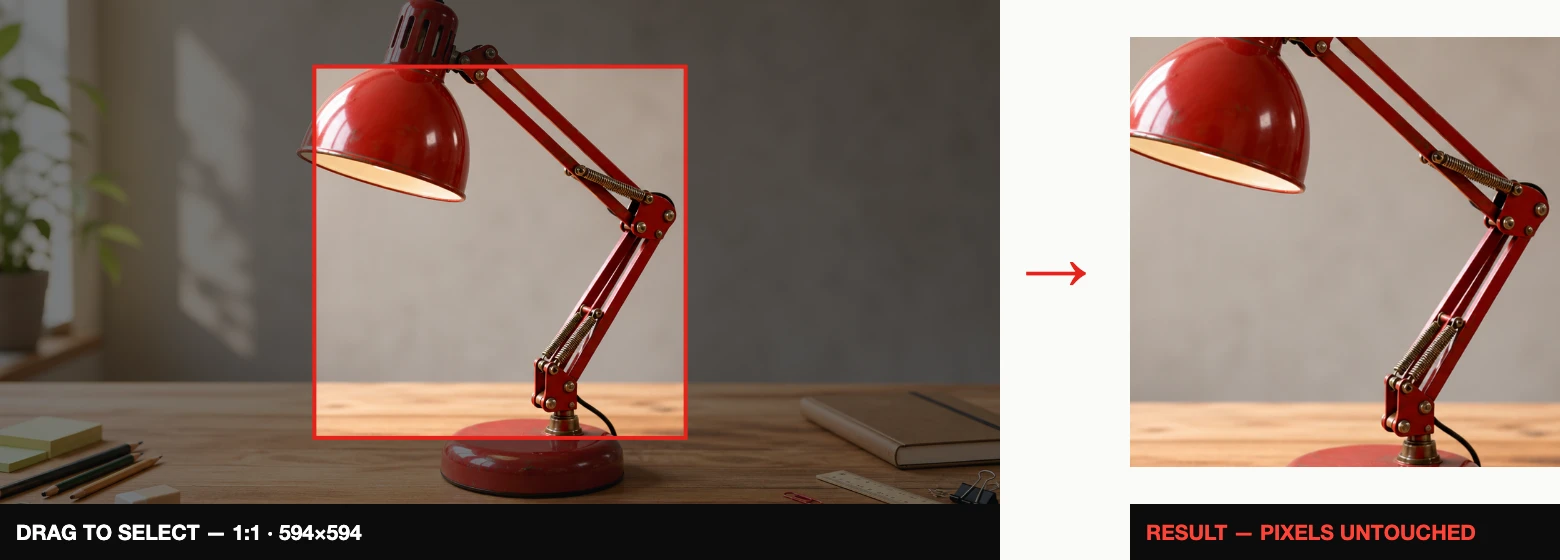
Drag to select, snap to a preset ratio, download the exact pixels. Rule-of-thirds guides included.
Drop an image here, or click to choose
Drag on the image to select · presets available
How to use
- Drop an image and choose Free, 1:1, 4:3, 16:9 or the OG preset.
- Drag the selection until the live readout shows the framing you need.
- Choose PNG or JPG, then crop and download.
Best results
Set the aspect ratio before refining the composition. Crop first, then resize to the final pixel dimensions; stretching a finished crop changes its proportions.
Crop before you resize
Cropping decides what is in the frame; resizing decides how big it is. Do them in that order and you keep maximum sharpness. The selection readout shows exact pixel coordinates, so you can reproduce the same crop on another image.
The presets
- 1:1 — avatars and Instagram grid.
- 4:3 / 16:9 — classic photo and widescreen video frames.
- OG 1200×630 — the exact ratio link previews use on social media; crop with this, then resize to 1200 px wide. Every other dimension worth knowing is in the image size cheat sheet.
Frequently asked questions
Can I crop to exact pixel dimensions?
Pick a ratio preset, drag the selection, and watch the live readout under the image — it shows the exact pixel size and position. For a precise final size, crop to the right ratio first, then use the resizer to hit the exact number.
Does cropping lose image quality?
No. Cropping just discards pixels outside the selection — the pixels you keep are copied unchanged. Choose PNG output for lossless results, or JPG if you need a smaller file.
What is the OG preset for?
1200×630 (1.91:1) is the size social platforms use for link preview cards. Crop with the OG preset and your image will never be awkwardly auto-cropped when someone shares the link.