Runs in your browser · nothing uploaded

Image Compressor

Shrink file size and compare every pixel with a live before/after slider. Processing happens on your device only.

Drop an image here, or click to choose

JPG · PNG · WebP · one image at a time

How to use

  1. Drop a JPG, PNG or WebP image and wait for the preview.
  2. Choose JPG or WebP and lower the quality slider while watching the comparison.
  3. Keep the smallest result that still looks right, then download it.

Before you download

Check the result size as well as the preview. If the result is larger than the source, keep the original instead. For screenshots, logos and text, use PNG rather than this photo-focused compressor.

Judge with your eyes, not a number

The comparison view shows the exact pixels you will download — grab the red handle and sweep it across the image. Drag the quality slider down until you start to see a difference, then step back up one notch — that is your optimum. For photos, quality 75–85 in WebP is usually indistinguishable from the original at a fraction of the size.
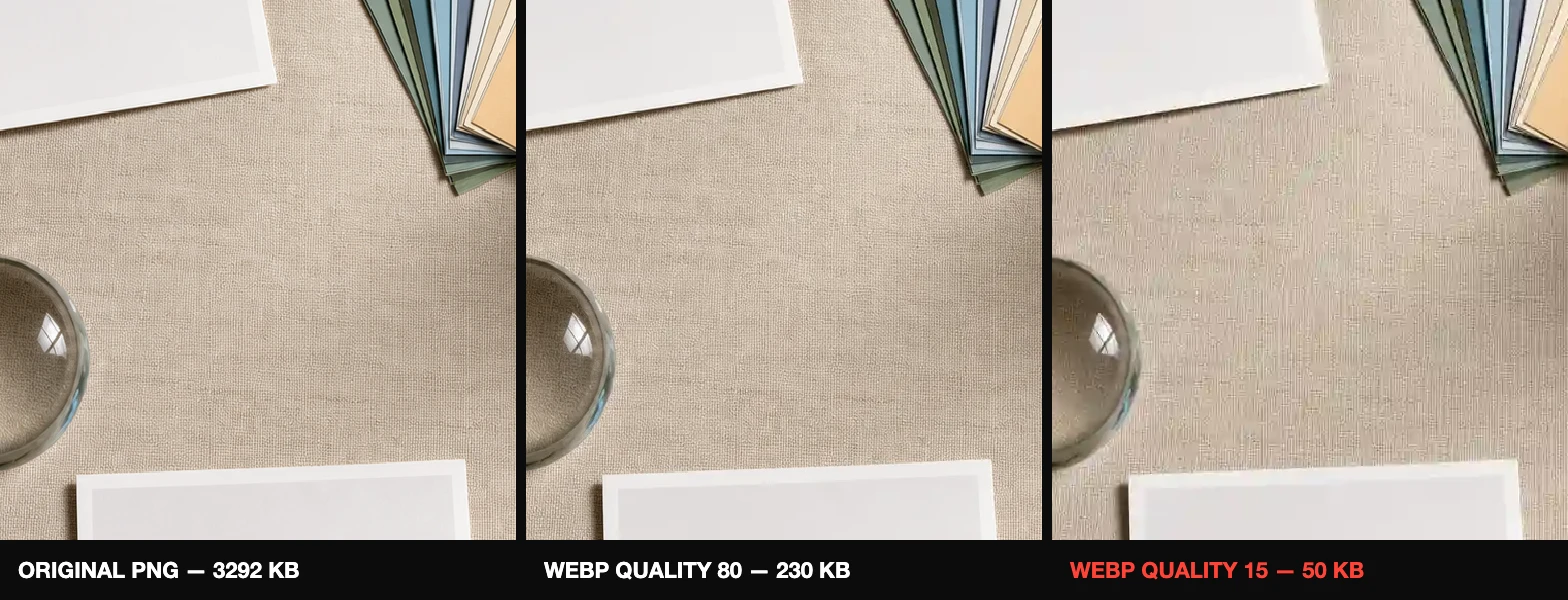
Three zoomed crops of the same image: the lossless original, WebP at quality 80 looking identical, and WebP at quality 15 showing blocky artifacts
Same image, zoomed in. Quality 80 is visually identical to the original at a fraction of the size — at quality 15 block artifacts and smudged edges appear. Figure produced with this very tool.

When compression makes files bigger

Re-encoding an already tiny or already heavily compressed image can increase its size. The tool tells you when that happens — keep the original in that case. Read how image compression actually works for the theory, and the 3-step workflow for where compression fits in.

Frequently asked questions

What quality setting should I use?
Start at 80%. For photos going on the web, 75–85% in WebP is the sweet spot — big savings, no visible difference. Drop lower only for thumbnails, and go higher (90+) for images people will zoom into.
Why did my file get bigger after compressing?
The source was probably already heavily compressed, or very small. Container overhead and re-encoding can outweigh the savings. The result line warns you when this happens — keep the original file then.
Should I compress screenshots with this?
Usually no. Screenshots and UI images contain hard edges and text, which lossy compression smudges. Keep them as PNG, or use lossless compression. This tool is built for photos.
Is there a maximum file size?
No fixed cap — everything runs on your device. Extremely large images (100+ megapixels) may be slow or hit browser memory limits, but ordinary camera photos are instant.