Free image tools · 100% in-browser
Convert, compress and clean up images without uploading them.
Eight tools that run entirely in your browser. Your photos, scans and screenshots are processed on your device — they never touch a server, ours or anyone else’s.
01 The toolset
Image Converter
PNG, JPG and WebP — batch convert in one drop.
02→Image Compressor
Shrink file size with a live before/after slider.
03→Image Resizer
Batch resize by pixels or percent, aspect ratio locked.
04→Image Cropper
Drag to crop, with 1:1, 4:3, 16:9 and OG presets.
05→EXIF Viewer & Remover
See what your photo reveals — then strip it losslessly.
06→Favicon Generator
One image in, every favicon size + a real .ico out.
07→SVG to PNG
Render SVG markup or files to crisp PNG at any scale.
08→Image to Base64
Data URIs with ready-to-paste CSS and HTML snippets.
02 Choose a starting point
Match the job to the tool.
- Oversized photos: resize to the largest display size first, then compress the smaller file.
- Wrong format: use the converter for PNG, JPG or WebP.
- Exact framing: crop to the right composition or ratio, then resize only if a pixel target matters.
- Metadata privacy: inspect and remove GPS and camera details with the EXIF tool before sharing.
- Website delivery assets: render logos with SVG to PNG, make icon sets with the favicon generator, or use Base64 only for tiny inline assets.
03 The workflow
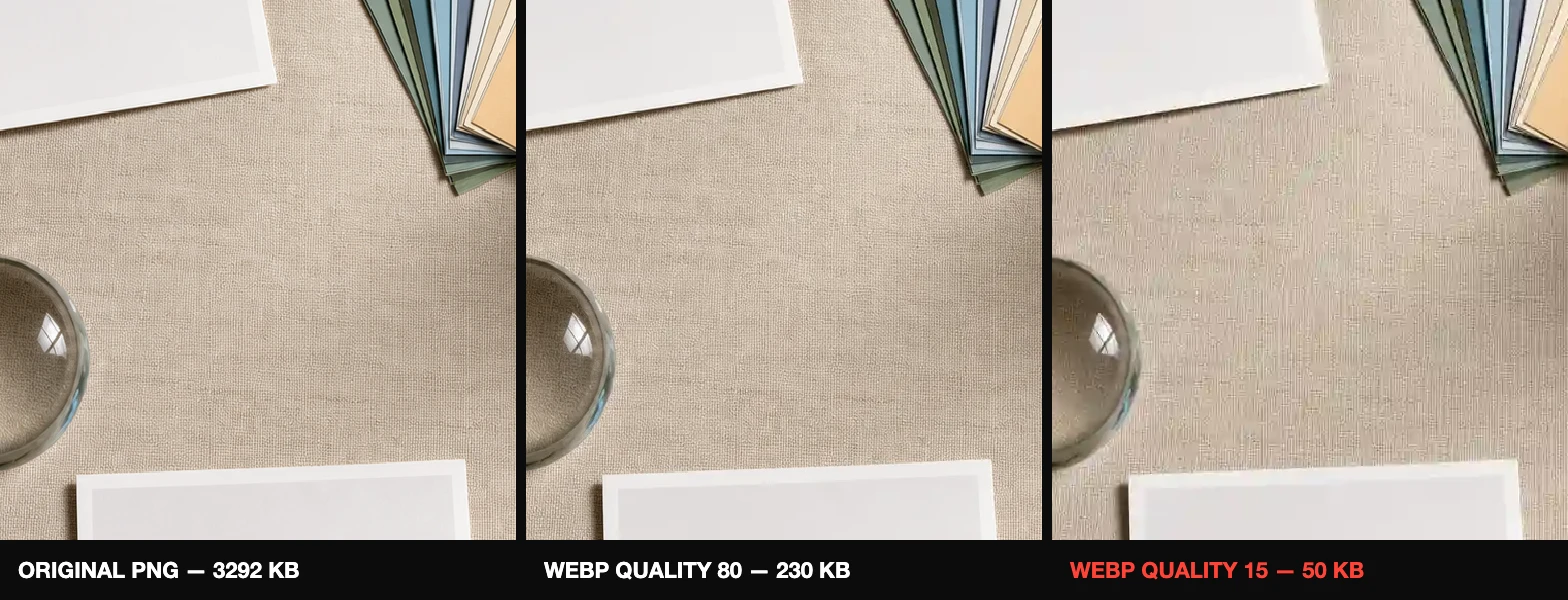
Crop → resize → compress.
Done in that order, this routinely cuts 90% of an image’s file size with no visible loss — the figure above is real output from these tools.
Read the 3-step guide →04 Why “no upload” matters
Your files stay on your device. Verifiably.
Most free image sites send your file to their server, process it there, and keep logs. That is a real problem for ID scans, contracts, medical documents and family photos. PixSquish uses the image engine already built into your browser (the Canvas API), so the file opens locally, gets processed locally, and downloads locally. Don’t take our word for it: load any tool, switch off your Wi-Fi, and keep working — or read why we built it this way.
05 Guides
WebP vs AVIF vs JPEG vs PNG: Which Format When
A practical decision guide to modern image formats, with a cheat table.
GuideHow Image Compression Actually Works
Lossy vs lossless, quality sliders, and why 80% is usually the sweet spot.
GuideEXIF Data: What Your Photos Reveal About You
GPS coordinates, camera serials, timestamps — and how to remove them.
GuideImage Size Cheat Sheet: OG, Favicon, Social
Every dimension you keep googling, in one table.
GuideFavicon Size Guide: 16×16 to 512×512
The browser, Apple touch and PWA icon sizes that matter, with tags to copy.
GuideReduce Image File Size for the Web: 3 Steps
The crop → resize → compress workflow that routinely cuts 90% off, with targets.
GuideSVG vs PNG for Logos and Icons
Vector or raster? A practical decision guide, and when to rasterize.