Image Resizer
Resize one image or a whole batch by pixels or percent. Aspect ratio stays locked so nothing gets distorted.
Drop images here, or click to choose
Batch supported · aspect ratio locked by default
How to use
- Drop one image or a batch, then choose Pixels or Percent mode.
- Enter one dimension with Keep ratio on, or choose a percentage.
- Check the new dimensions in each row and download the files you need.
Best results
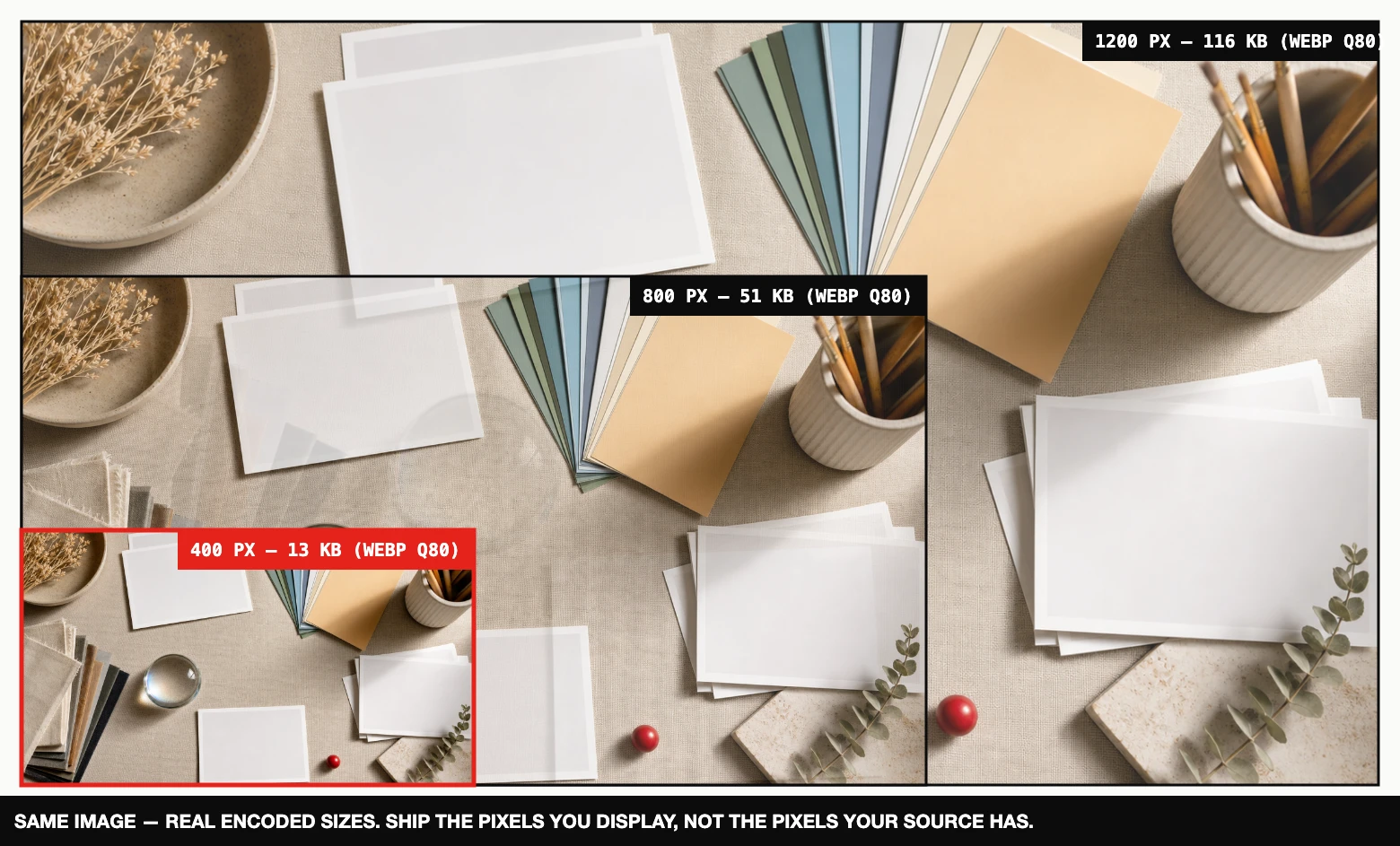
For the web, size to the largest space the image will actually occupy rather than the camera’s full resolution. Reduce dimensions before compressing; pixels you remove cannot consume download bytes.
Keep the ratio unless you have a reason not to
With Keep ratio on, set only one dimension and the other follows automatically — no squashed faces. Turn it off only when a layout demands exact dimensions, and prefer cropping over stretching in that case.
Common target sizes
- 1200 px wide — blog content images and Open Graph cards.
- 1080 px — Instagram feed; 1920 px — full-screen hero images.
- 50% — quick halving of oversized phone photos (12 MP → 3 MP, plenty for the web).
The output keeps each file’s original format. Full dimension reference: image size cheat sheet; the complete diet plan: reduce image file size in 3 steps.